Download IChelp Remote Support RustDesk Client
Choose your platform below. After installing, your technician will send you a session link to connect — no configuration needed for Windows.
Windows
Windows 10 or later (64-bit)
Step-by-step instructions:
1
Click Download for Windows above to download
IChelp-RustDesk-Setup.exe.
2
Run the installer. If Windows SmartScreen appears, click More info then Run anyway — the app is safe and signed.
3
RustDesk will open automatically and is pre-configured to connect to Isreal Consulting, LLC's private server — no extra setup needed.
4
Wait for your technician's session invitation email, then click Open My Support Session and accept the incoming connection in RustDesk.
Android
Android 6.0 or later
Step-by-step instructions:
1
Click Download for Android above to download the APK, or scan the QR code on the right to download directly to your device.
2
Open the downloaded
.apk file. If prompted, enable Install from unknown sources in your Android settings.
3
After installing, open RustDesk. Tap the ⋮ menu → Network and scan the configuration QR code shown on the right to connect to Isreal Consulting, LLC's private server.
4
Wait for your session invitation, then open it and accept the incoming connection.
Scan to Configure
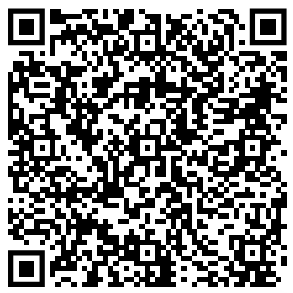
Scan in RustDesk → Network settings
iPhone / iPad
iOS 12 or later
Step-by-step instructions:
1
Tap Download for iPhone above to open the App Store listing, then tap Get to install.
2
Open RustDesk after installing. Tap Settings → Network and use the camera to scan the configuration QR code on the right.
3
Wait for your session invitation, then open the link and accept the incoming connection.
Scan to Configure
Scan in RustDesk → Network settings
Ubuntu / Linux
Ubuntu 20.04+ · Debian-based (x86_64)
Step-by-step instructions:
1
Click Download for Linux above to download
rustdesk-1.5.0-x86_64.deb.
2
Install the package. In a terminal run:
Or double-click the
sudo apt install ./rustdesk-1.5.0-x86_64.debOr double-click the
.deb file to open it in your software center.
3
Open RustDesk, then go to Settings → Network → Import Server Config and paste or import the config file sent in your session invitation.
4
Wait for your session invitation email, open the session link, and accept the connection in RustDesk.
macOS
macOS 10.14 Mojave or later (Intel x86_64)
Step-by-step instructions:
1
Click Download for macOS above to download
rustdesk-1.5.0-x86_64.dmg.
2
Open the
.dmg file and drag RustDesk to your Applications folder.
3
Launch RustDesk. If macOS blocks it, go to System Settings → Privacy & Security and click Open Anyway.
4
Go to Settings → Network → Import Server Config and import the config file from your session invitation email.
5
Open your session link and accept the incoming connection when your technician connects.
About RustDesk
RustDesk is a free, open-source remote desktop application.
All sessions run through Isreal Consulting, LLC's private server — no data is ever
shared with third parties. You can end any session instantly by closing the app.